

How I Built a Visual Dashboard for OpenClaw: The AI Gateway OpenAI Just Acquired
Three days after OpenAI announced the acquisition of OpenClaw and its creator Peter Steinberger, I shipped an open-source React dashboard that gives OpenClaw a visual interface for the first time. Here is the full story of what I built, how I built it, and why it matters for the open-source AI community.
The OpenAI Acquisition: Why This Matters Now
On February 15, 2026, OpenAI announced the acqui-hire of Peter Steinberger, the creator of OpenClaw. The news hit Hacker News, TechCrunch, VentureBeat, and CNBC within hours. Steinberger, previously known for founding PSPDFKit (a document SDK used by companies like Dropbox, Autodesk, and IBM), had spent the previous years building OpenClaw as an open-source personal AI assistant.
The acquisition was significant for several reasons. First, it validated the idea that self-hosted AI assistants are the future. OpenAI, the company behind ChatGPT, saw enough value in OpenClaw's architecture to bring its creator in-house. Second, the project stays open source under a foundation, meaning the community can continue building on it. Third, it created a moment of intense attention on the project, exactly the kind of moment when community contributions get noticed.
I had been building the dashboard before the acquisition was announced. When the news dropped, I realized I had a narrow window to ship something meaningful while the world was paying attention to OpenClaw. Three days later, the dashboard was live on GitHub.
What is OpenClaw?
Before diving into the dashboard, you need to understand what OpenClaw actually is and why the tech world went crazy when OpenAI acquired it.
OpenClaw is a self-hosted personal AI assistant that runs on your own devices. Think of it as the infrastructure layer between you and every AI model, every messaging channel, and every device you own. It connects to WhatsApp, Telegram, Slack, Discord, Google Chat, Signal, iMessage, Microsoft Teams, and more. It speaks, listens, and can even render a live collaborative canvas.
The system architecture is remarkably ambitious. At its core sits the Gateway, a WebSocket server that acts as the control plane for everything. Through this gateway, you can orchestrate multiple AI agents, manage conversation sessions across channels, schedule automated tasks, pair devices, install skills, and configure voice pipelines. The Gateway exposes over 80 RPC methods and 17 event types through a JSON wire protocol.
What makes OpenClaw special is that it is not just another chatbot wrapper. It is a full operating system for AI interactions. You can run multiple agents simultaneously, each with their own personality, knowledge, and capabilities. You can have one agent handling your WhatsApp messages with a casual tone while another manages your Slack workspace with professional communication. Sessions can span across channels, so a conversation started on Telegram can continue on Discord seamlessly.
The skill system alone has over 50 built-in capabilities: web search, image generation, code execution, file management, calendar integration, smart home control, and much more. The voice pipeline supports text-to-speech with multiple providers, speech-to-text, wake word detection, and a full talk mode for hands-free interaction.
The Problem: Terminal-Only Access
Despite all of this power, OpenClaw had one massive limitation. The only way to interact with it as an administrator was through the terminal. There were 35 CLI commands for everything from sending messages to managing agents to configuring voice settings. The existing UI was a minimal Lit web component embedded in the gateway, with approximately 580 state fields crammed into a single monolithic class.
For developers comfortable with the command line, this was fine. But it created an enormous barrier to entry for anyone else. Want to see which channels are connected? Run a command. Want to browse available models? Run another command. Want to check the health of your gateway? Yet another command. Want to create a new agent? You better know the exact JSON structure for the API call.
This is the gap I set out to fill. Every CLI command deserved a visual interface. Every RPC method deserved a button you could click. Every event stream deserved a real-time display.
The Architecture Decision: Pure WebSocket Client
The first and most important architectural decision was that the dashboard would be a pure WebSocket client. No database. No backend API. No server-side state management. Just a React application that connects directly to the OpenClaw Gateway over WebSocket and renders whatever it receives.
This decision had several advantages. First, it meant zero additional infrastructure. If you already run OpenClaw, you already have everything you need. Second, it meant the dashboard would always show real-time data, not cached or stale information. Third, it kept the codebase lean and focused. There is no ORM, no migration system, no cache invalidation logic. Just typed RPC calls and event subscriptions.
The gateway connection follows OpenClaw's protocol version 3, which uses a challenge-nonce authentication flow:
- The server sends a
connect.challengeevent with a random nonce - The client responds with a
connectrequest containing auth credentials, client identity, and protocol version - The server validates and responds with
hello-ok, including a feature manifest, state snapshot, and connection policy - From this point, the client can make typed RPC calls and subscribe to events
I ported the existing GatewayBrowserClient from OpenClaw's Lit-based UI into plain TypeScript, removing all framework dependencies. The result is a single file (gateway-client.ts) that handles connection lifecycle, auto-reconnect with exponential backoff (800ms to 15s), sequence gap detection, and typed request/response pairs for all 80+ RPC methods.
The Tech Stack
I chose Next.js 16 with the App Router because it gives you file-based routing, server-side rendering for SEO, and React Server Components out of the box. The dashboard has 12 pages, and each one maps cleanly to a route file.
React 19 brought improvements to hooks and concurrent rendering that make real-time WebSocket applications feel smoother. The streaming chat page, for example, updates token-by-token as the AI generates its response, and React 19 handles these rapid state updates without janking the UI.
TypeScript in strict mode was non-negotiable. The OpenClaw Gateway protocol has complex typed messages, and having full type safety for every RPC call prevents an entire class of bugs. The RPCMethodMap type maps every method name to its parameter and result types, so rpc("agents.list") knows exactly what it accepts and returns.
Tailwind CSS v4 handles all styling. No component library. No CSS modules. No styled-components. Every visual element is built from utility classes directly in the JSX. This keeps the bundle small and makes the code immediately readable since you can see exactly what every element looks like without jumping between files.
Lucide React provides the icon set. It is tree-shakeable, so only the icons actually used end up in the bundle.
Building the Gateway Client
The gateway client was the foundation everything else depended on. Getting this right was critical.
The WebSocket connection starts with a URL from the environment configuration (NEXT_PUBLIC_OPENCLAW_GATEWAY_URL). On connection, the server immediately sends a challenge event. The client must respond with the correct authentication within a timeout window or get disconnected.
I wrapped this in a React hook called useOpenClawGateway that manages the connection lifecycle:
- It auto-connects on component mount
- It exposes
rpc(method, params)for typed RPC calls - It provides
subscribe(event, callback)for event listeners - It handles reconnection automatically when the connection drops
- It tracks connection state (disconnected, connecting, authenticating, connected, error)
On top of this, I built a React context (OpenClawProvider) that shares a single gateway connection across all pages. This means navigating between the Chat page and the Agents page does not create a new WebSocket connection. Every page shares the same live connection.
Page by Page: What I Built
Overview Dashboard
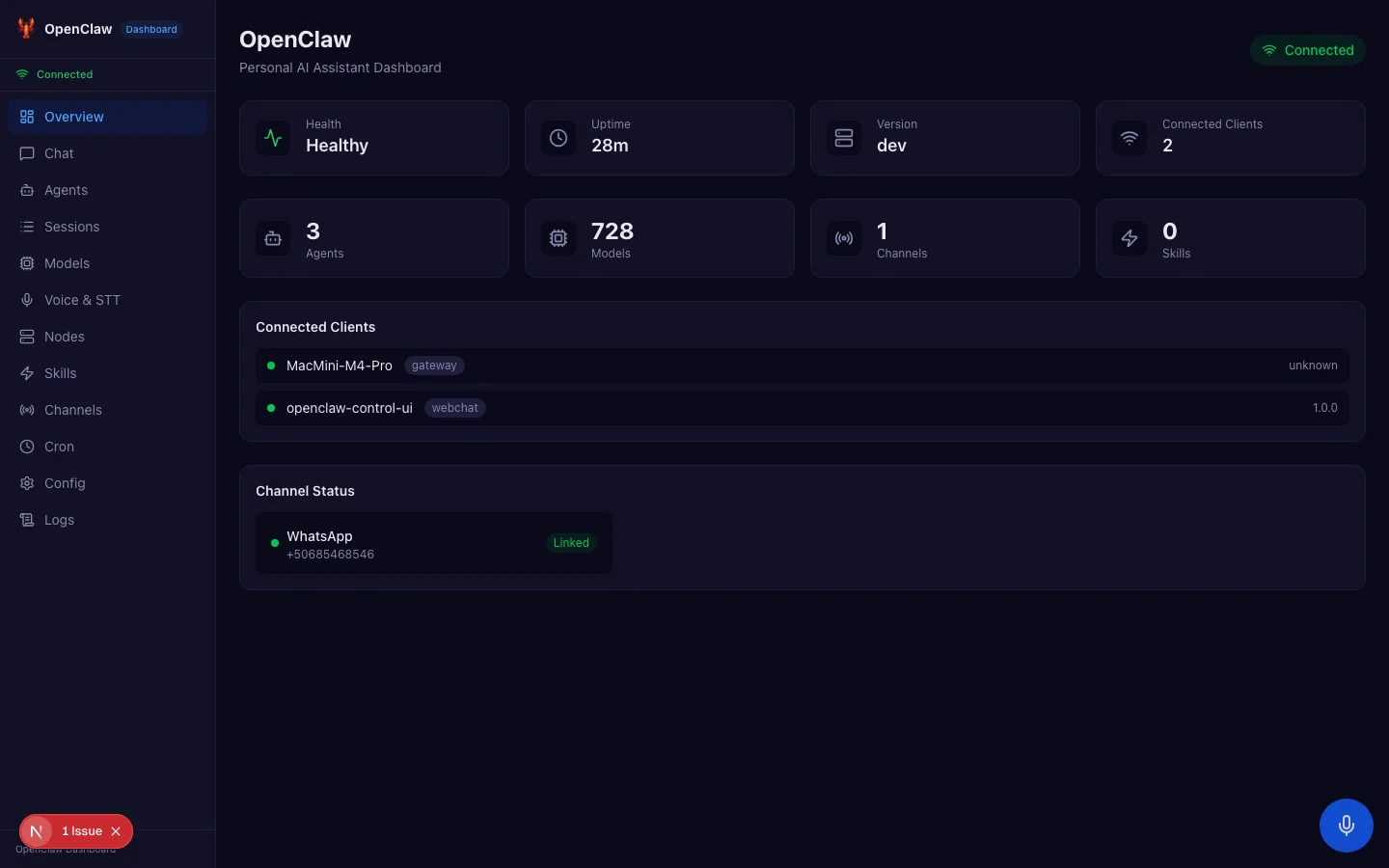
The overview page is the landing screen. It calls two RPC methods on load: health for gateway health and channels.status for channel information. It displays:
- Health status with a green Healthy badge
- Uptime counter
- Gateway version
- Number of connected clients
- Summary cards for agents, models, channels, and skills
- A list of connected clients showing their hostname, mode, and version
- Channel status showing which messaging services are linked
This single page replaces the openclaw status and openclaw health CLI commands.
Streaming Chat
The chat page was the most technically challenging. OpenClaw's chat protocol uses streaming events where each delta message contains the full accumulated text, not incremental additions. This is different from most streaming APIs (like OpenAI's) where each chunk contains only the new tokens.
I discovered this through extensive testing with raw WebSocket scripts. The initial implementation appended each delta to the existing content, which caused text duplication. The fix was to replace the entire content on each delta event instead of appending.
Another subtlety: the gateway auto-prefixes session keys with the agent ID. When you send a message with session key dashboard-chat, the events come back with session key agent:main:dashboard-chat. The chat hook uses suffix matching to correlate events with the correct session.
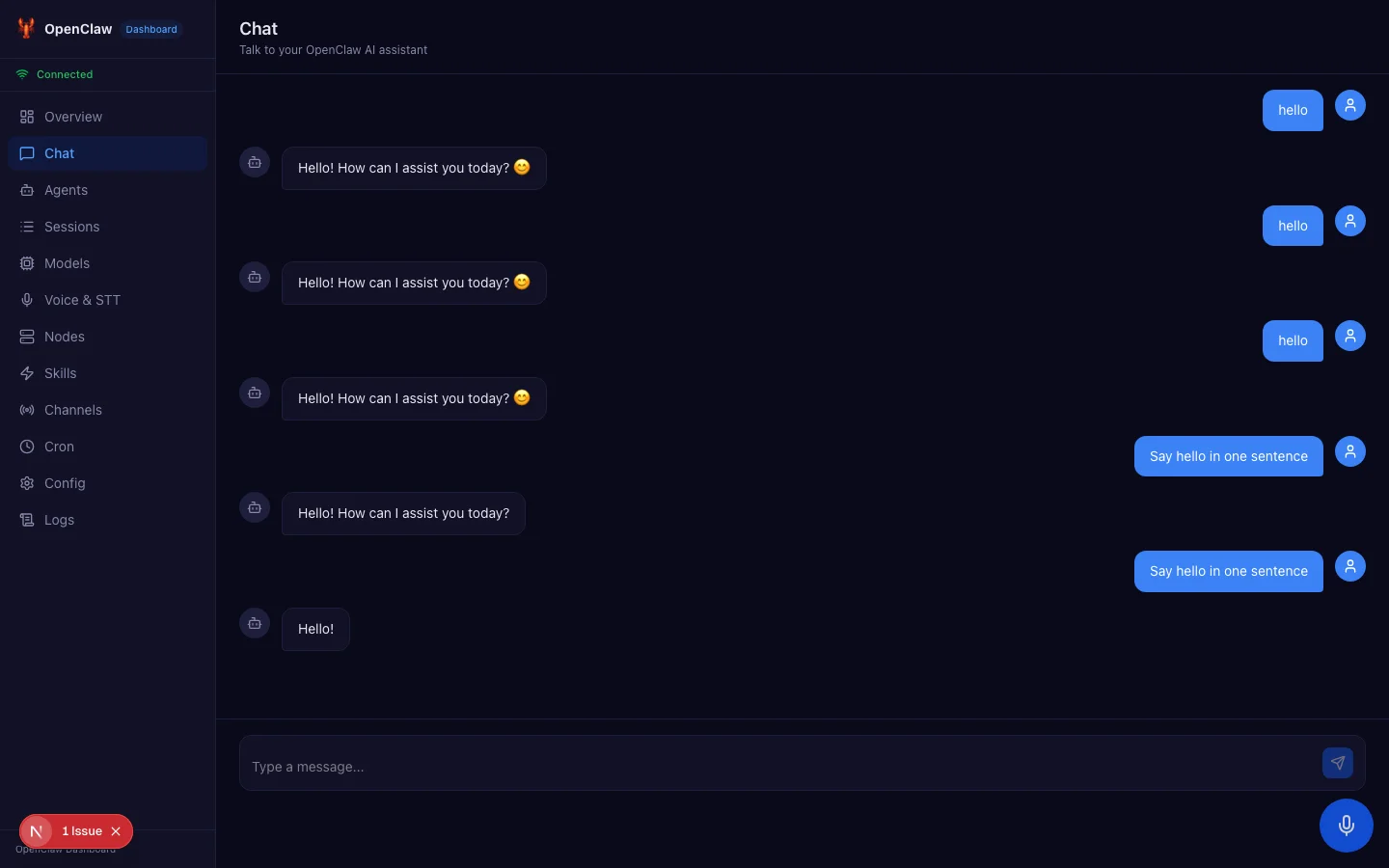
The chat also supports abort functionality. If the AI is generating a long response and you want to stop it, clicking the stop button sends a chat.abort RPC call that terminates the generation immediately.
Agent Management
The agents page provides full CRUD operations for AI agents. You can create new agents with a name, emoji, and system prompt. You can edit existing agents. You can delete agents you no longer need.
Each agent in OpenClaw has an identity object containing their display name, avatar emoji, and theme (system prompt). The agent list shows all configured agents with their emoji and name, and clicking one takes you to the edit page.
This replaces openclaw agents list, openclaw agents add, and openclaw agents delete.
Model Catalog
OpenClaw supports hundreds of AI models across multiple providers. The models page fetches the full list via models.list and displays them as a card grid. Each card shows the model name, provider, context window size, and capabilities (like reasoning or multimodal input).
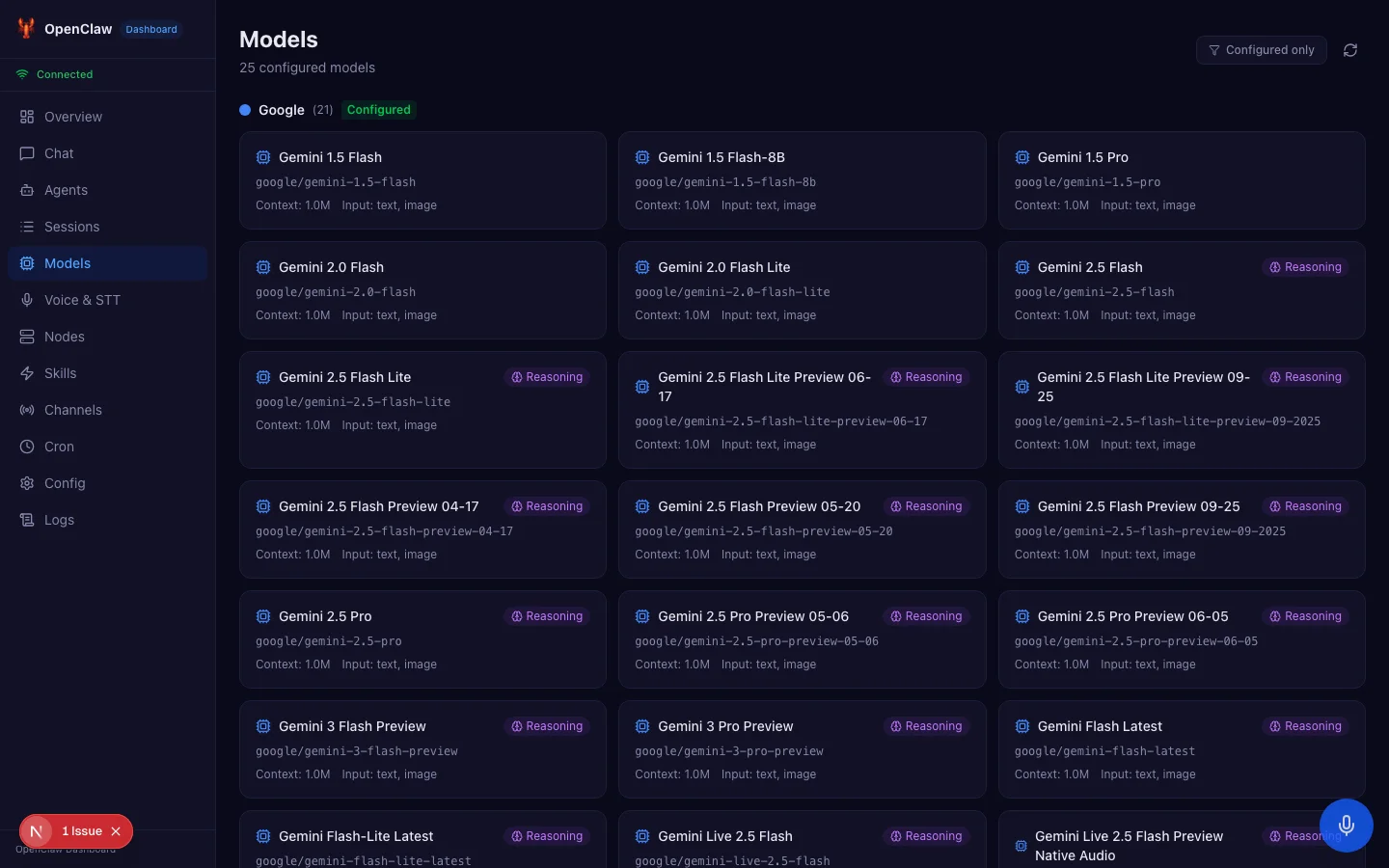
A provider filter at the top lets you narrow down to specific providers like Anthropic, OpenAI, Google, Ollama, or others. In my setup, this page shows 728 models across all configured providers.
WhatsApp QR Code Login
This feature was particularly satisfying to build. OpenClaw supports WhatsApp through a web login flow that requires scanning a QR code. Previously, this was a terminal-only operation.
The channels page now has an inline QR panel. When you click Scan QR on an unlinked WhatsApp channel, it calls web.login.start, which returns a PNG data URL containing the QR code. The dashboard renders this as an image with a white background for visibility, along with instructions to open WhatsApp on your phone and scan the code.
The page then calls web.login.wait, which long-polls the gateway for up to 120 seconds waiting for the scan. During this time, a pulsing indicator shows that it is waiting. When the scan completes, a success animation plays and the channel status refreshes automatically.
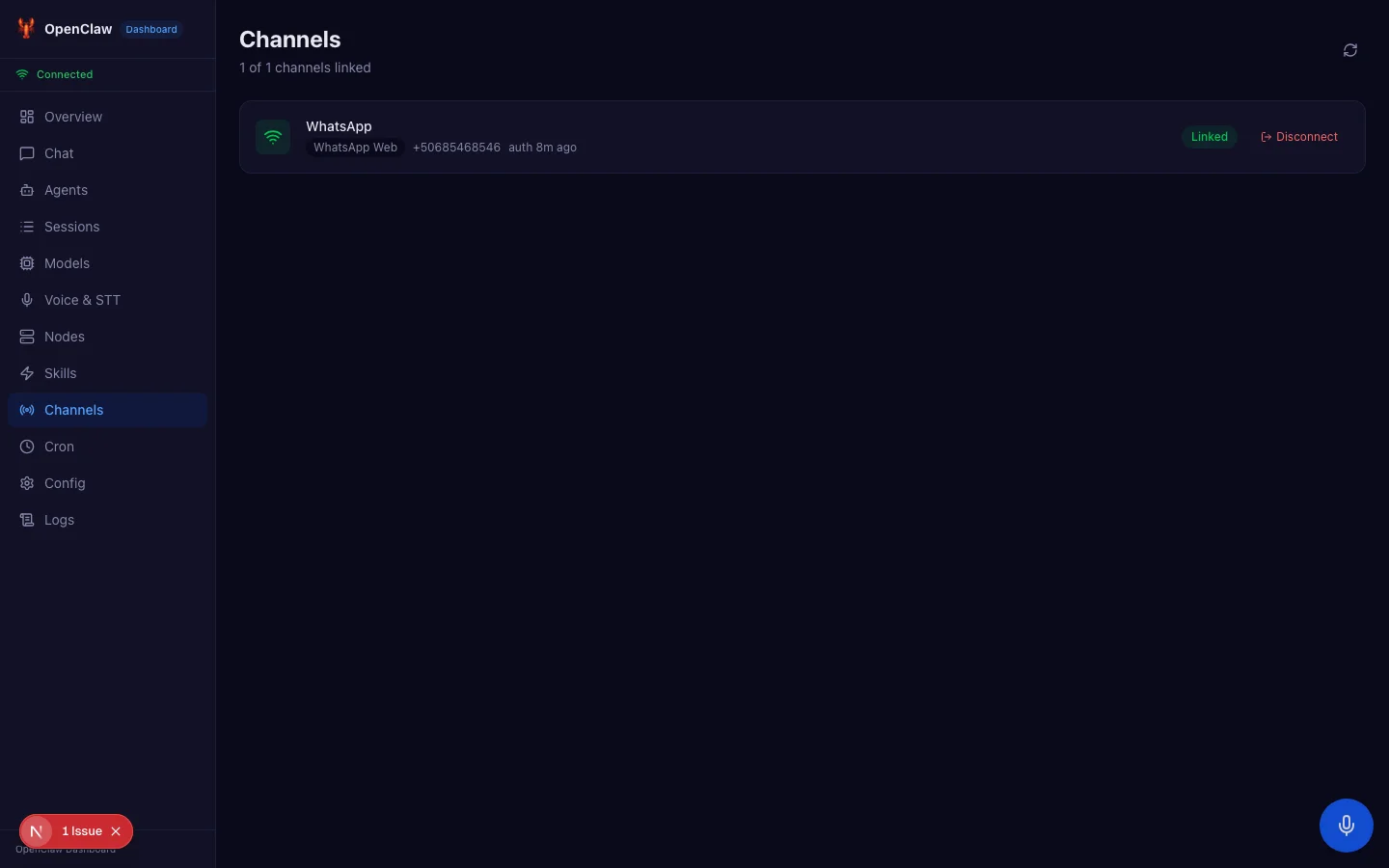
The entire flow is managed by a state machine with steps: idle, loading, showing (QR visible), waiting, success, and error. Each step has its own visual treatment with appropriate loading states, error handling, and retry capabilities.
Voice and Speech-to-Text
The voice page is split into three tabs: TTS (text-to-speech), STT (speech-to-text), and Talk Mode.
The TTS tab lets you test voice synthesis. Type or paste text, select a provider and voice, and click Convert. The audio plays back directly in the browser through a proxy API route that fetches the audio file from the gateway.
But the real standout feature is speech-to-text everywhere. I built a floating microphone button that appears in the bottom-right corner of every page. Press it (or use the keyboard shortcut Cmd+Shift+M), and it starts listening using the browser's built-in Web Speech API.
As you speak, a transcript preview appears above the button showing interim results in gray and final results in white. The transcription automatically injects into whatever input field is currently focused. So you can navigate to the chat page, click the message input, press the mic button, and dictate your message by speaking.
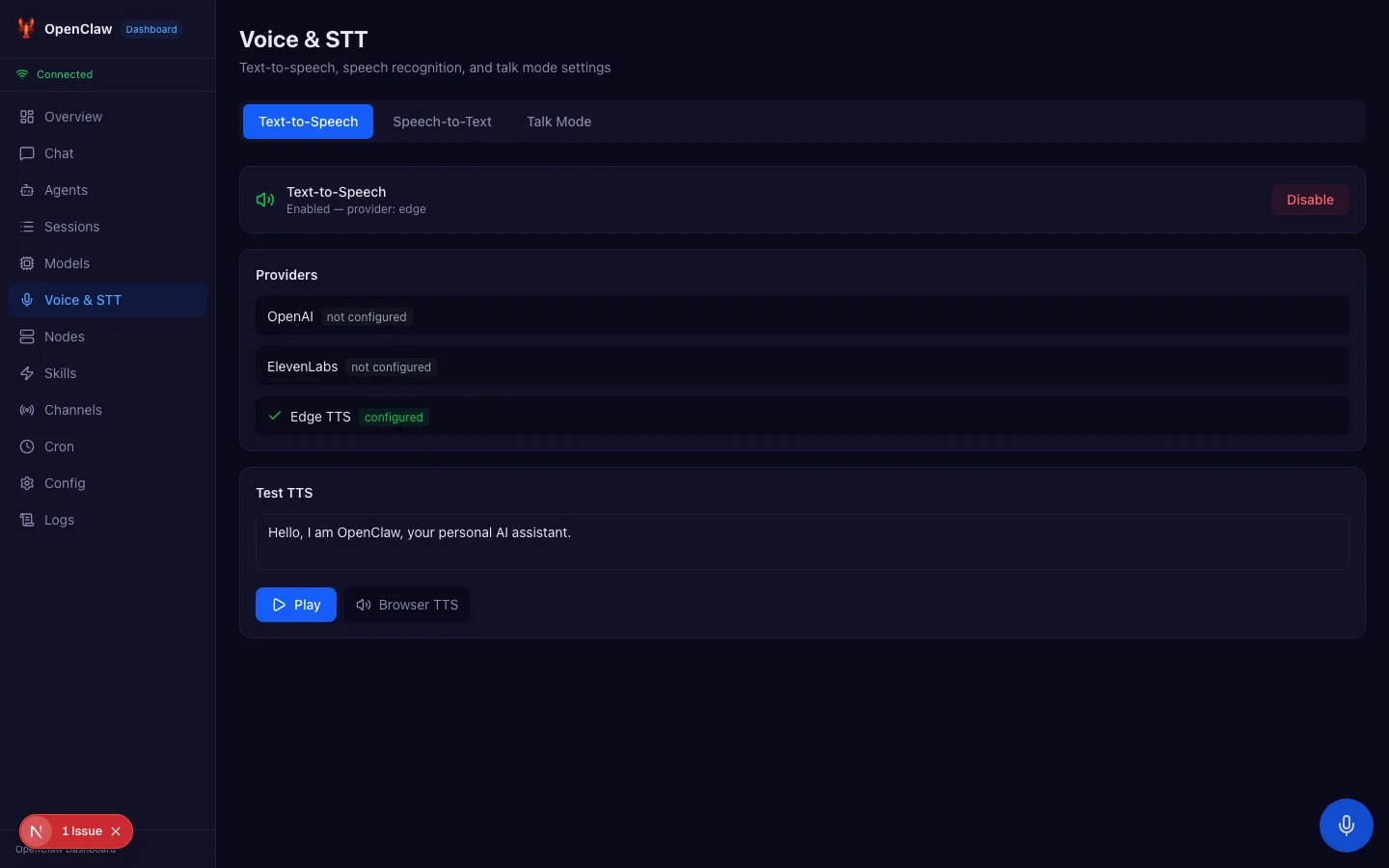
This works entirely client-side with zero server dependency. The Web Speech API is built into Chrome, Edge, and Safari. No API keys needed, no usage costs, no network latency.
Sessions Browser
Every conversation in OpenClaw creates a session. The sessions page shows all active sessions with their display name, channel, agent, model, and token usage. You can compact sessions to reduce token count, reset them to start fresh, or delete them entirely.
Skills Marketplace
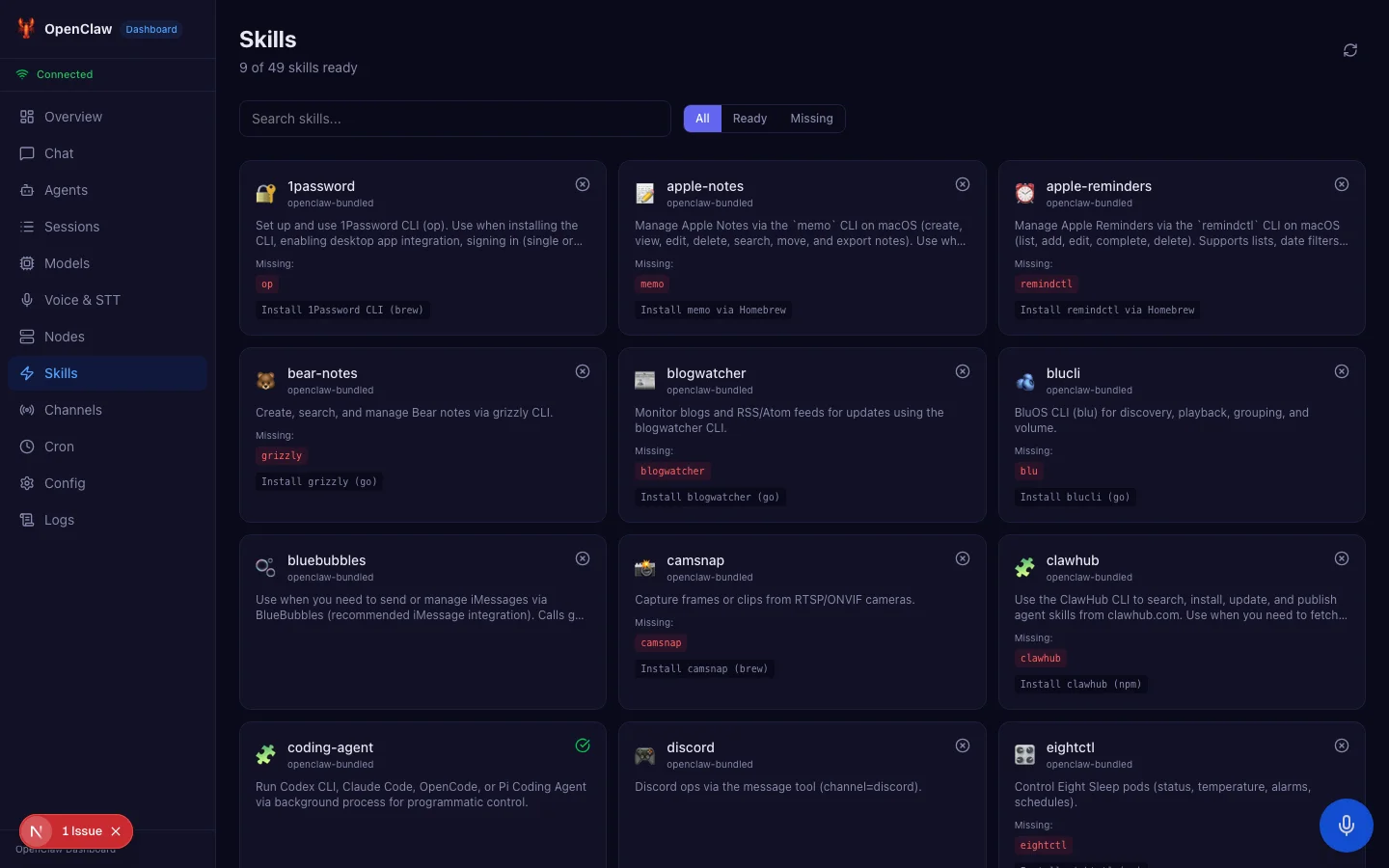
OpenClaw has a rich skill system. The skills page fetches all available skills and displays them as a grid of cards. Each card shows the skill name, description, emoji, source, and eligibility status. Skills that are missing requirements show what needs to be installed.
Configuration Editor
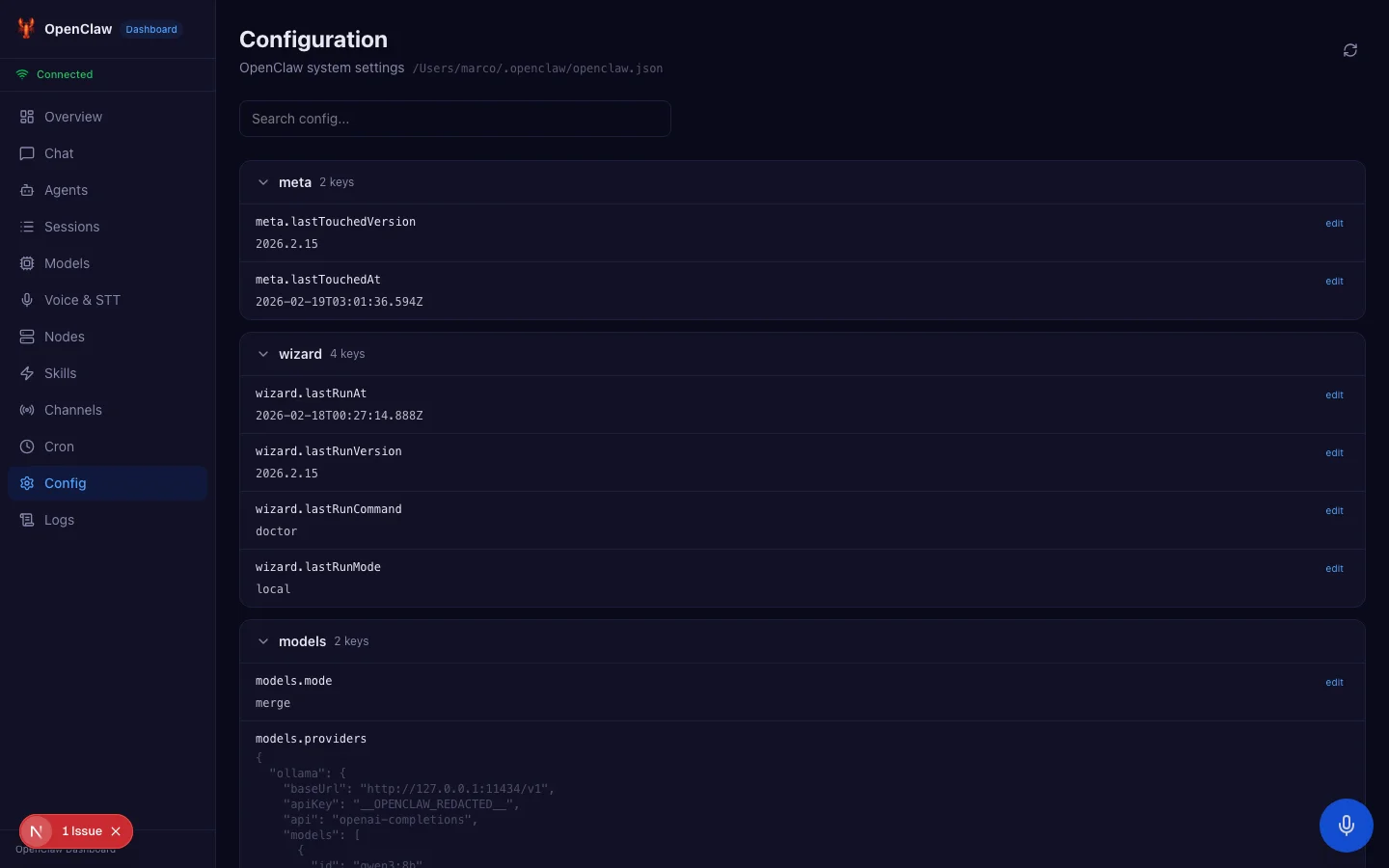
The config page reads the entire OpenClaw configuration tree via config.get and renders it as a collapsible tree view. Each node can be expanded to see nested values. This replaces the repetitive process of running openclaw config get <key> for each setting you want to check.
Cron Scheduler
OpenClaw supports scheduled tasks through cron expressions. The cron page shows all configured jobs with their schedule, last run time, next run time, and status. You can create new jobs, enable or disable existing ones, and trigger manual runs.
Live Logs
The logs page streams real-time log output from the gateway. It uses a monospace font with color-coded severity levels, similar to what you would see in a terminal but in a scrollable, filterable web interface.
Node and Device Management
OpenClaw can connect to multiple nodes and devices. The nodes page shows all connected nodes with their platform, version, capabilities, and online status. You can rename nodes and manage device pairing, approving or rejecting new devices that want to connect to your gateway.
Challenges and Solutions
Hydration Mismatch
One of the trickier bugs was a React hydration mismatch caused by the speech-to-text feature. The FloatingMicButton component checks for window.SpeechRecognition support, which does not exist during server-side rendering. The server renders nothing (no support), but the client renders the button (support exists), causing a mismatch.
The fix was twofold: defer the isSupported check to a useEffect hook instead of computing it during render, and add a mounted state guard so the component only renders after client hydration completes.
Chat Delta Accumulation
As mentioned earlier, OpenClaw's chat events contain the full accumulated text in each delta, not incremental additions. This is a design choice that makes clients simpler (you always have the complete text) but tripped up my initial implementation which assumed incremental deltas.
Session Key Prefixing
The gateway automatically prefixes session keys with the agent identifier. Sending a message with session key dashboard-chat generates events with session key agent:main:dashboard-chat. Using exact string matching to correlate events failed silently. Switching to suffix matching (sessionKey.endsWith(ourKey)) resolved this.
Chat History Format
The chat.history RPC returns an object with a messages array and metadata, not a flat array of messages. Additionally, messages can contain thinking content blocks that need to be filtered out when displaying to users. These are internal reasoning traces that the AI model generates but should not be shown in the UI.
The Complete File Structure
Understanding the codebase organization helps if you want to contribute or learn from the implementation. Here is every file and its purpose:
openclaw-dashboard/
├── app/
│   ├── layout.tsx              # Root layout with OpenClawProvider, Sidebar, FloatingMicButton
│   ├── globals.css             # CSS variables for dark theme with light mode support
│   ├── page.tsx                # Overview dashboard (health, agents, models, channels)
│   ├── chat/page.tsx           # Streaming chat with abort support
│   ├── agents/
│   │   ├── page.tsx            # Agent list with create/delete
│   │   ├── new/page.tsx        # New agent form
│   │   └── [id]/page.tsx       # Edit agent form
│   ├── sessions/page.tsx       # Session browser with compact/reset/delete
│   ├── models/page.tsx         # Model catalog with provider filter
│   ├── voice/page.tsx          # TTS testing, STT settings, Talk Mode
│   ├── nodes/page.tsx          # Node and device management
│   ├── skills/page.tsx         # Skills marketplace with eligibility
│   ├── channels/page.tsx       # Channel status with QR login flow
│   ├── cron/page.tsx           # Cron job management
│   ├── config/page.tsx         # Collapsible config tree editor
│   ├── logs/page.tsx           # Real-time log viewer
│   └── api/tts-audio/route.ts  # TTS audio file proxy endpoint
├── lib/
│   ├── gateway-client.ts       # WebSocket client (challenge-nonce auth, reconnect, typed RPC)
│   └── types.ts                # Full wire protocol types (80+ RPC methods, 17 events)
├── hooks/
│   ├── use-openclaw-gateway.ts # Gateway connection hook
│   ├── use-openclaw-chat.ts    # Chat with streaming and history
│   ├── use-openclaw-agents.ts  # Agent CRUD operations
│   ├── use-openclaw-models.ts  # Model listing
│   ├── use-openclaw-sessions.ts# Session management
│   ├── use-openclaw-tts.ts     # Text-to-speech controls
│   ├── use-openclaw-nodes.ts   # Node and device management
│   └── use-speech-to-text.ts   # Browser Web Speech API wrapper
├── contexts/
│   └── OpenClawContext.tsx      # Shared gateway connection provider
└── components/
    ├── Sidebar.tsx              # Navigation sidebar with connection status
    ├── FloatingMicButton.tsx    # Global STT mic button (Cmd+Shift+M)
    └── VoiceTranscriptPreview.tsx # Live transcript overlay
The architecture follows a clear separation of concerns. The lib directory contains pure TypeScript with no React dependencies. The hooks directory wraps the library code in React hooks. The contexts directory provides shared state. And the components and app directories handle presentation.
Each hook follows the same pattern: it consumes the gateway RPC function from the OpenClaw context, manages local state for its domain, and provides typed functions for creating, reading, updating, and deleting resources. This means adding a new domain is straightforward: write the hook, create the page, connect them through the existing context.
Performance Considerations
Real-time WebSocket applications have unique performance characteristics compared to traditional REST-based dashboards. Here are the trade-offs I encountered and how I addressed them.
Connection sharing. The gateway client maintains a single WebSocket connection shared across all pages via React context. This avoids the overhead of creating new connections on every navigation. The downside is that if the connection drops, every page loses data simultaneously. The auto-reconnect logic mitigates this by attempting reconnection within 800 milliseconds.
Event filtering. The gateway sends all events to all connected clients. The chat hook, for example, receives events for every active chat session, not just the one displayed on screen. Each hook filters events by their relevant identifiers (session key, agent ID, etc.) and discards the rest. For high-traffic gateways with many concurrent sessions, this filtering is essential to prevent unnecessary re-renders.
Lazy data loading. Each page fetches its data independently on mount rather than pre-loading everything. The overview page calls health and channels.status. The models page calls models.list. The skills page calls skills.status. This means the initial page load is fast, and each navigation loads only what it needs.
No polling. Unlike traditional dashboards that poll REST endpoints on intervals, the WebSocket connection delivers updates in real time. When a channel status changes or a new session starts, the relevant event arrives immediately. This eliminates wasted network requests and provides a more responsive user experience.
The Development Process: AI-Assisted Building
I built this dashboard using Claude Code, an AI coding assistant that runs in the terminal. The development process was genuinely collaborative, with the AI handling implementation details while I made architectural decisions and tested against the live gateway.
The process worked like this: I would describe what I wanted at a high level, like "build a channels page with WhatsApp QR login." The AI would explore the OpenClaw codebase to understand the relevant RPC methods, write the React components, and test the gateway calls. When something did not work (like the chat delta accumulation issue), we would debug together by writing raw WebSocket test scripts to understand the exact protocol behavior.
This approach accelerated development dramatically. The gateway client port, all 12 pages, all 8 hooks, the speech-to-text system, and the QR login flow were built in a matter of days rather than weeks. The AI handled the boilerplate and the type definitions while I focused on testing, debugging protocol edge cases, and making design decisions.
I mention this not as a novelty but because it is becoming the standard way serious projects get built. The code quality is the same whether a human types every character or an AI generates it under human direction. What matters is that the architecture is sound, the types are correct, and the user experience works.
Why This Matters
The open-source AI ecosystem is at an inflection point. With OpenAI acquiring OpenClaw, the project gains resources and visibility while remaining open source under a foundation. But for open source to thrive, it needs community contributions that go beyond bug fixes.
A visual dashboard lowers the barrier to entry dramatically. Someone evaluating OpenClaw no longer needs to memorize 35 CLI commands. They can explore the entire system through a familiar web interface. They can see their channels, browse their models, manage their agents, and chat with their AI, all without opening a terminal.
This is especially important for non-technical users who might want to run a personal AI assistant but are intimidated by the command line. The dashboard makes OpenClaw accessible to a much wider audience.
The Hook Architecture: A Pattern for Real-Time Applications
One of the design decisions I am most satisfied with is the hook architecture. Each domain in OpenClaw gets its own hook: use-openclaw-chat, use-openclaw-agents, use-openclaw-models, use-openclaw-sessions, use-openclaw-tts, and use-openclaw-nodes.
Every hook follows the same structure:
- Consume the
rpcfunction from the OpenClaw context - Maintain local state for the domain data (list of agents, list of models, etc.)
- Provide a
refreshfunction that calls the relevant RPC method - Provide mutation functions (create, update, delete) that call the relevant RPC methods and then refresh
- Handle loading and error states
This pattern has several benefits. First, it keeps page components thin. A page like Agents imports the hook, destructures the values it needs, and renders them. The page does not know anything about WebSocket protocols or RPC methods. Second, it makes testing straightforward. You can mock the hook at the import boundary and test the page component in isolation. Third, it makes the codebase discoverable. If you want to understand how models work, you read use-openclaw-models.ts. Everything related to that domain is in one file.
The chat hook is the most complex because it handles streaming events in addition to RPC calls. It subscribes to the chat event type, filters events by session key, and updates the message list in real time as tokens arrive. The other hooks are simpler because they only use request/response RPC calls without event subscriptions.
For anyone building a real-time dashboard for any WebSocket-based system, this hook pattern is directly reusable. The gateway client abstraction (connect, authenticate, rpc, subscribe) works for any JSON-over-WebSocket protocol, not just OpenClaw. The hook pattern (fetch, cache locally, expose mutations) works for any CRUD domain.
Contributing to Open Source During an Acquisition
The timing of this project coincided with one of the biggest moments in OpenClaw's history. When a project gets acquired, the community often worries about the future. Will it stay open source? Will contributions still be accepted? Will the maintainers still be responsive?
The fact that OpenClaw is being maintained under a foundation, separate from OpenAI, is encouraging. But words are only words until someone tests them. By opening a pull request to the main repo during the acquisition week, I was testing whether the project was truly still accepting community contributions.
This is a strategy that works for any open-source project experiencing a major event: launch, acquisition, major release, or leadership change. These events create attention spikes. Contributions made during attention spikes get more visibility, more discussion, and more likelihood of being merged than identical contributions made during quiet periods.
If you are a developer looking to build credibility through open source, timing matters as much as code quality. Find projects at inflection points and contribute something meaningful.
The Open Source Angle
I built this as a standalone project, separate from the main OpenClaw repository. The reasoning was strategic: a standalone repo is easier for people to discover, star, fork, and contribute to. It has its own README, its own issue tracker, and its own identity.
At the same time, I opened a pull request to the main OpenClaw repository adding a Community Projects section to their README that links to the dashboard. If merged, this creates a permanent connection between the dashboard and the official project.
The entire codebase is MIT licensed, the same as OpenClaw. Anyone can fork it, modify it, deploy it, or build on top of it.
What I Learned
Building this project reinforced several lessons about working with real-time WebSocket protocols:
Test with raw scripts first. Before writing any React code, I wrote plain Node.js scripts that connected to the gateway and logged every message. This revealed the exact data formats, event sequences, and edge cases that documentation alone would not have shown.
Type everything. The RPCMethodMap type that maps every method to its parameter and result types caught dozens of bugs at compile time. When the gateway returns { agents: [...] } instead of a flat array, TypeScript tells you immediately.
State machines for complex flows. The QR login flow has six distinct states. Representing these as a discriminated union type (QRState) with explicit transitions made the UI logic predictable and the error handling exhaustive.
Defer browser API checks. Any check for browser-only APIs (like SpeechRecognition, window, navigator) must happen inside useEffect, never during render. Server-side rendering will always produce different results than client-side rendering for these checks.
Getting Started
If you want to try the dashboard yourself:
- Make sure you have OpenClaw installed and the gateway running (
openclaw gateway start) - Clone the repository:
git clone https://github.com/actionagentai/openclaw-dashboard.git - Install dependencies:
npm install - Copy the environment file:
cp .env.example .env.local - Add your gateway token to
.env.local - Start the dev server:
npm run dev - Open
http://localhost:3000and the dashboard will auto-connect
You may need to add your dashboard origin to the gateway's allowed origins in ~/.openclaw/openclaw.json.
What is Next
The dashboard covers the core functionality, but there is more to build:
- Live demo mode with mock data so people can explore without installing OpenClaw
- Mobile responsive layout for managing your AI assistant from your phone
- Keyboard shortcuts for power users who want fast navigation
- Canvas integration to display and control OpenClaw's collaborative canvas
- Multi-agent chat to talk to different agents in separate tabs
- Notification system for incoming messages and events
The repository is open for contributions. Whether you want to fix a bug, add a feature, or improve the design, pull requests are welcome.
Comparing CLI vs Dashboard: A Side-by-Side
To illustrate the difference the dashboard makes, here is what common operations look like in both interfaces:
Check gateway health:
- CLI:
openclaw healththen parse the JSON output in your terminal - Dashboard: Open the Overview page, see a green Healthy badge, uptime, version, and connected clients at a glance
Browse available models:
- CLI:
openclaw models listoutputs a long table of text that scrolls off screen - Dashboard: A filterable card grid showing 728 models with provider icons, context windows, and capabilities
Link WhatsApp:
- CLI:
openclaw channels login whatsappprints a QR code as ASCII art in your terminal (often broken by font rendering), then you wait with no visual feedback - Dashboard: Click Scan QR, see a crisp PNG QR code with scan instructions, watch a pulsing indicator while waiting, see a success animation when connected
Manage agents:
- CLI:
openclaw agents listfor viewing,openclaw agents add --name "My Agent" --emoji "..." --theme "..."for creating (remember the exact flag names) - Dashboard: Click Agents in the sidebar, see all agents with their emoji and name, click New Agent, fill in a form, click Create
Configure settings:
- CLI:
openclaw config get gateway.controlUi.allowedOriginsfor one setting at a time, repeated for each setting you want to check - Dashboard: A collapsible tree view of the entire configuration, expandable with a single click
The pattern is clear: operations that require memorizing command names, flag syntax, and JSON structures become point-and-click interactions. The information density is higher in the dashboard because you can see multiple related pieces of data simultaneously rather than running sequential commands.
Security Considerations
Since the dashboard connects directly to the OpenClaw Gateway, security depends on the gateway's own authentication and authorization model. The dashboard transmits the auth token from the environment variable, and the gateway validates it against its configured credentials.
The dashboard runs entirely in the browser. No data passes through an intermediary server. The WebSocket connection is direct from the user's browser to their own gateway. This is important because it means there is no third-party service that sees your conversations, API keys, or gateway configuration.
For production deployments, I recommend running the gateway behind a reverse proxy with TLS (wss:// instead of ws://) and restricting allowed origins to only the domains where the dashboard is served.
Conclusion
OpenClaw is one of the most ambitious open-source AI projects I have seen. It solves the fragmentation problem of having AI conversations scattered across different apps and services. The gateway architecture is elegant, the protocol is well-designed, and the skill system is genuinely powerful.
What it needed was a visual interface that matched the ambition of the backend. I hope this dashboard is a step in that direction. The fact that it connects purely over WebSocket, with no database or backend of its own, means it will continue to work as OpenClaw evolves. The gateway protocol is the contract, and as long as that contract holds, the dashboard stays current.
If you run OpenClaw, give the dashboard a try. If you are evaluating OpenClaw, the dashboard might be the thing that tips you from curious to committed. And if you are just interested in real-time WebSocket applications with React, the codebase is a practical reference for typed RPC calls, event streaming, and connection lifecycle management.
The code is at github.com/actionagentai/openclaw-dashboard. Stars, issues, and PRs all appreciated.
Built by Marco Nahmias at SolvedByCode.ai. AI-assisted development with Claude Code.


